rustfs by rustfs is a game-changer in its space. Excited to see how it evolves. 🚀 RustFS is an open-source, S3-compatible high-performance object storage system supporting migration and coexistence with other S3-compatible platforms such as MinIO and Ceph.
Publishing rhythm
Rules
There is no such thing as magic Be ready to roll back live deployments If CI was too fast be suspicious Always be available after a release. No one wants to read your slop, if you are too lazy to write it don’t send it. Tech will always fail, we only have some control over blast radius strive for a blameless culture Need a tool Make a tool Recognize the right idea when you hear it. Always carry a knife One Breath at a time Let Glue Dry Obsess over quality. blocking others is a p0 creating process is a cardinal sin
You already have a git server: maurycyz.com It’s so easy to forget low level tech sometimes. Things that are dead simple and just work without a hitch. is one of those rock solid things thats very easy to remember all that it does, this is a classic use case. This just works In order to recieve you must update the remote to allow recieve. Now you can pull update push. It’s funny how this was the way I first learned to do Continuous Deployment to a RHEL7 machine, also how Heroku worked, but its so easy to forget this solution is there. I come across it every few years and immediately have a few use cases in mind.
Please don't give Reflect Orbital money: maurycyz.com Well done write up about reflecting solar energy back to earth from low orbit space. I did not know this was a thing, apparently it is/isn’t. Solar is a great technology, its largest limitations are that its not consistent. This tech does not fix this problem, what does is efficient long term storage. I’ve seen some crazy ideas going back to my days in school, maybe elementry school. Theres a lot of innovative ways to store potential energy by moving heavy objects uphill whether fluid or solid. The issue is that energy storage at grid scale is HUGE and not efficient enough. Even assuming this idea had any legs at all, it still doesn’t solve the problem of inconsistent power because it still cant go through clouds!
Melo (@letitmelo.bsky.social) I legitimately didn't know they were competing with Steam and it's crazy to me that they burnt so much money on what sounds like something with very little (or wildly misguided) market research. [… Bluesky Social · bsky.app Wild to see the LinkedIn post linked here to see how out of touch this feels. I find it astonishing that they have something so ingrained into gaming culture as twitch, yet build something like Prime Gaming. Maybe I have no idea what Prime gaming is, but it feels like the opposite of ownership. What I get from steam is a sense of ownership. I own the desktop/laptop/handheld, no one cough nintendo cough cough cant remotely disable my device for using it inappropriately. I have a sense of trust with steam that as long as Gabe is alive I own what I paid for and will be able to open up and play anything at any time on any device I want. It might be a $100 dell workstation raised out of the coorporate refurb bin, it might be a high end machine, It could be my 2010 gateway or my 2045 custom build and they are all likely to play a good amount of my library at some level. I still understand that I really own nothing and the moment steam tur…
Bazzite (@bazzite_gg) on X @thesvpanda @_Messier_33 @LeagueOfLegends Unfortunately that game uses some of the worst spyware in the industry, it will never work outside of Windows with secure boot enabled and TPM hardware. C… X (formerly Twitter) · x.com ROASTED Unfortunately that game uses some of the worst spyware in the industry, it will never work outside of > Windows with secure boot enabled and TPM hardware. Consider Dota 2 or other mobas by competent developers
Meredith Whittaker (@meredithmeredith.bsky.social) 📣THREAD: It’s surprising to me that so many people were surprised to learn that Signal runs partly on AWS (something we can do because we use encryption to make sure no one but you–not AWS, … Bluesky Social · bsky.app Great justification for using the cloud. The infrastructure requirement for signal to be such a great app would be massive for a small team with low budget. The cloud is fantastic at unknown scaling, bursts beyond reasonable capacity to run yourself, getting compute everywhere in the world, and offloading huge infrastructure management costs. DHH is 100% right that we have gone too far, too many things come out cloud first for services that can be ran locally cough such as your bed cough cough. One week ago when the world came to a hault, I did not bat an eye at these small teams with complex requirements going down with AWS. Their own products seem quite damning to me. It signals that they cannot themselves become resilient to themselves. It shows how hard this problem is, how much cost in complexity and resources it requires. I’m sure there are fail overs that happened successfully that we will never hear about, cri…
Just starred croc by schollz. It’s an exciting project with a lot to offer. Easily and securely send things from one computer to another 🐊 📦
I often want to run an s3 sync in an isolated environment, I don’t want to set
any environment variables, I don’t want anything secret in my history, and I
don’t want to change my dotenv into something that exports variables, I just
want s3 sync to work. dotenv run is the tool that I’ve been using for this,
and this uv one liner lets it run fully isolated from the project.
one liner #
uv tool run --from 'python-dotenv[cli]' dotenv run -- uv tool run --from awscli aws s3 sync s3://bucket data
multi-line #
same thing formatted for readability
uv tool run \
  --from 'python-dotenv[cli]' \
  dotenv run -- \
uv tool run \
  --from awscli \
  aws s3 sync s3://dropper data
There are probably 10 ways to skin this cat, but this is what I did, if you have a better way let me know, I’ll link you below.
First 3d Printed Threads
Working on an upcoming project that requires some threaded screws. Trying to keep a low budget on this one with as much to come off of the printer as I can. It might become a slant3d portals product if it works out. I always like making test prints for stuff like this especially to see how the feel is off of the printer that is going to print the final product and take much longer. First try was a success. What worked # I started out looking up standard half inch thread pitch and size, but ran out of time to get the exact profile of a half inch bolt, so I will need to fix that later. Th The print orientation is critical for strength here. This part is a full 1/2: so it should be strong either way, but to make sure we are printing the bolt horizontally to get nice long print layers. To do this we have to give it a bit of a flat spot on the top and bottom. This does not hurt performance, if anything it probably helps give some room for poor tolerances..5" od 13tpi pitch non-standard prof…
Atuin desktop sounds dope AF, tried to install it off the AUR and it was broken for me. Seems early and the dev team is all in on mac. They have an official.deb and.rpm. I’ll have to try again later, maybe the binary will work. The idea of building out runbooks from my Atuin data sounds dope AF. It sounds like a mix of markdown and executable cells like a jupyter notebook, but not. Really pitching hard to those of us in the system administration, dev ops, SRE space. Having something that you walk through when a system goes down and you are feeling panicked in DR mode sounds relieving.
Cloud is cooked bois. Seriously too much dumb shit relies on the cloud. Too much critical shit relies on single AZ’s. If normies are literally loosing sleep over an AWS outage (queue the Uncle Roger Voice), You’ve Fucked up. It’s wild to even think about a bed relying on the cloud let alone fully stop working when UE-1 goes down. I want to live in a world of opt in FEATURES, things that bring value to a product because it makes it better. Somehow a bed smells suspiciously like a cash grab for a subscription because its cloud connected. And yet for some reason it takes 16GeeeBee’s per month. I don’t own one of these, and I don’t want to. I don’t want a subscription for everything, I want my shit to just work. The future we are headed towards a world that is ever more reliant on a few key clouds. Which is fine. It’s fantastic that small companies can start and scale without owning an infrastructure team. It’s great that they have the ability to give us many nines of reliability. Some things just don’t need the cloud.
#artificialintelligence #hiring | Gary Vaynerchuk | 117 comments I care about humanity first, THEN skills.. and in this AI-scaled world, human sh*t will win 🔑 #artificialintelligence #hiring | 117 comments on LinkedIn LinkedIn · linkedin.com More Human stuff that’s what we will be doing. Less looking at docs, more architecting (which suspiciously looks like writing docs), more decision making, more explaining. This is a good positive take on AI right now.
FastAPI.">Starlette has a head request that works right along side your get requests.
This morning I fiddled around with custom routes for GET and HEAD, but had
to manually set some things about the file, and was still missing e-tag in
the end. Turns out as a developer you can just add a head route to
your get routes and starlette will strip the content for you, while
preserving all of those good headers that fastapi FileResponse created
automatically for you.
from fastapi import APIRouter
from fastapi.response import FileResponse
from fastapi import Request
from pathlib import Path

router = APIRouter()

@router.get("/file/{filename}")
@router.head("/file/{filename}")
async def get_file(filename: str, request: Request,):
    headers = {
      "Cache-Control": "no-cache, no-store, must-revalidate",
    }
    from pathlib import Path
    filename = Path(f"data/{filename}")
    if not filename.exists():
        raise HTTPException(status_code=404, detail="File not found")
    return FileResponse(filename, headers=headers)
Here is an example of the response with curl.
❯ curl -I -L "http://localhost:8100/api/file/e5523925-1565-454c-bab3-c70c4deabc83.webp?width=250"
HTTP/1.1 200 OK
date: Wed, 22 Oct 2025 14:16:03 GMT
server: uvicorn
cache-control: no-cache, no-store, must-revalidate
content-type: image/webp
content-length: 17206
last-modified: Tue, 23 Sep 2025 14:03:20 GMT
etag: f891660c1543feb1af7564f08abdd511

❯ curl -I -L "http://localhost:8100/api/file/unknown-file.webp?width=250"
HTTP/1.1 404 Not Found
date: Wed, 22 Oct 2025 14:16:11 GMT
server: uvicorn
content-length: 27
content-type: application/json
Today I learned that while .stignore and .gitignore look very similar they
are not. My obsidian directory had been locked up for a few weeks and I had no
idea why until I logged into the web ui and saw errors. The errors were some
confusing regex validator not matching. I don’t know what the exact error was,
but I went in and only ignored the files I cared about instead of the entire
gitignore. Primarily I was getting conflicts in my .git directory.
pytauri has done a fantastic job with pytauri. Highly recommend taking a look. Tauri binding for Python through Pyo3
The work on fullcontrol by FullControlXYZ. Python version of FullControl for toolpath design (and more) - the readme below is best source of information
I’m impressed by nicegui from zauberzeug. Create web-based user interfaces with Python. The nice way.
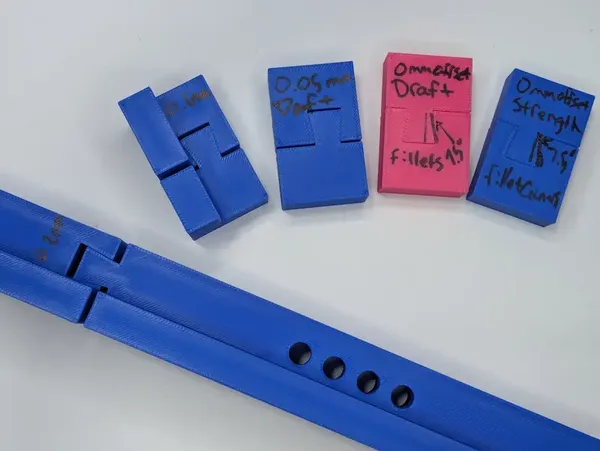
3d Printing Dovetails Experiment
I hit an issue with 3d printing oversized parts that I have not hit before. I’m working on some jigs for an upcoming woodworking project that will involve a lot of repetition. We want to utilize some dowel joinery and jigs for consistency. These parts will be up to 20in in length this is much larger than my print bed. I’ve fit things together before # Here’s where I went wrong, I wasn’t really thinking through my previous applications. They’ve all been slip fit, primarily print in place joints that need to move. My go to offset for print in place on my printer is 0.2mm, sometimes 0.1mm depending on the scale. A live hinged [[ knife-sharpener-double-hinge-first-try]]. And in the hinges of [[ a-box-of-caps-and-a-macropad]]. Experimenting for feel # Fitment like this is a lot dependent on the tolerences of your printer and the feel you are going for. I went to school as a mechanical engineer and theres a lot of science behind press fit joints, that’s not happening in my house on my deskto…
This is super cool, thanks to Brodie for reading me this content as I do household chores. lowtech magazine is a website ran completely on solar power with only enough battery backup to cover most days. Adding enough to cover all days would increase its carbon footprint and negate the carbon offset of the solar panels it runs on. It’s fascinating to see a web server running completely off grid in a close power system. These interesting websites are fascinating keep em coming Brodie.
The Year of the Linux Desktop is a meme, every year is the year of the Linux desktop as it gains rounding errors of market share. Outside of Linux nerds, developers that use servers on the regular, cheap asses reviving old hardware that is dead in the eyes of other OS’s, the average user wont even notice a difference with the right distro. I ran bazzite with plasma for over a year, It would be super beginner friendly while allowing users customization on levels never seen on non-Linux machines. Other than adobe, roblox, and EA games with easy anti-cheat most users probably aren’t going to run in to any issues. They probably wont even notice at this point, which is where the meme comes in. Why would anyone switch if its not noticeably different for the average user, they wont, until what is working for them stops working for them.

Looking for inspiration? unnamed_game_1_v2 by Mordoria. The Release of Mordoria
Litewind Litewind is Tailwind without the build step litewindcss.com This is a sick no-build version of tailwind. I have a couple of projects that the build step of tailwind is cumbersome on, mostly because they are for non-js devs. Some are for backend python devs, some are for folks that mostly want markdown with some styles. This is a perfect no-build tailwind alternative.
python extras are for shipping
Python has two ways of adding optional dependencies to your projects pyproject.toml file and. dependency-groups # for development Dependency grooups are used when working on the project, they do not ship with the project, users cannot select to install them with the project. These are for things like running tests, linting, or docs. You might want to run these in ci, or keep your dev machines tight. For the most part you can probably keep these in. Depending on your team, fluency, and tolerance for slower installs extra packages. Adding too many tight groups might make it hard for the team to remember all the groups and which one to use and end up with them using anyways. optional-dependencies # for users Optional dependencies are for shipping. These are for your users, not your development team. This is used for dependencies that are clearly not needed for all or main use cases. It is annoying to use projects that you need to add optionals to just to use at all so use them a bit spari…
anthony has some of the best python highlight videos each year. This might be a good sign, but each year there seems to be less and less that I am chomping at the bit to get to. I thought the remote debugger looked every interesting, his use case for seemed very interesting. I wonder what textual would look like built in a 3.14 world, would it still have built its own debugger/console? Without a process flag you need sudo permissions to attach a pdb debugger similar to gdb.
This is a pretty sick result, good fingerboards are stupid expensive. This looks like a fun way to make some good ones on the cheap.
Kraft-Coordinates
Handy reference for coordinates in the kraft world. Home # Overworld:-208 71 -291 Nether:-26 9 -36 Ocean Monument # Overworld: 209 62 -752 Nether:26 1 -94
PEP 735 – Dependency Groups in pyproject.toml | peps.python.org This PEP specifies a mechanism for storing package requirements in pyproject.toml files such that they are not included in any built distribution of the project. Python Enhancement Proposals (PEPs) · peps.python.org PEP 735 describes dependency groups as sets of optional dependencies that are not shipped with the package but intended for development purposes. The PEP includes an example for groups that include test, docs, typing, and a combo typing-test. This is implemented in uv and can be used by several of their commands. Dependency Groups are not Extras # The docs describe extras as being intended to ship with the application and dependency groups intended for development. The spec allows both to exist with the same name, but care should be taken as tools may have different implementations. Tools MAY choose to provide the same interfaces for installing Dependency Groups as they do for installing extras. Note that this specification does not forbid having an extra whose name matches a Dependency Group. Users are advised to avoid creating Dependency Groups whose names match extras. Tools MAY treat such matching as an…
Running Software on Software You’ve Never Run I love a good look at modern practices around semantic versioning and dependency management ( Rick Hickey’s talk “Spec-ulation” is the canonical one I think… blog.jim-nielsen.com Running software applications in production today is crazy. One point release opens up for supply chain attacks. What’s crazier is not running your production applications without a lock file, potentially running dependencies you’ve never ran before for the first time in prod.
Using Litestream to Restore My Database for Easy Development | Nic Payne Litestream see [[using-litestream-to-backup-quadtasks-sqlite-db]] for how I setup litestream replication for [[quadtask]] I have the entrypoint to my app contai pype.dev I really like how well the local dev is setup to run off of production data here. I’ll use this as a reminder that I need to set up lite stream on a few of my projects that it’s missing from and include a nice sync prod data Posts tagged: justfile recipe. Litestreams interface always throws me for a loop. It works fantastic, but the global config stored in /etc and some of the commands break my brain. It’s not you it’s me. Using real data when you can is goated. Fake data is so often a perfect example of what someone thinks the backend should look like and does not include things that users actually do, running pipelines for days, or setting titles to paragraphs worth of text. Obviously this is not possible everywhere and the more sensitive your data the harder that process becomes.
TIL: Loading.env files with uv run Replacing python-dotenv with uv https://daniel.feldroy.com · daniel.feldroy.com I smell a dependency to dying in my workflow. I originally read the title of the post and thought, “I know how to manage.env and almost skipped it”. I’m leaning more and more on these days, so this should just go in my [[ just file]] to make it easy to run.
Check out sidekick.nvim by folke. It’s a well-crafted project with great potential. Your Neovim AI sidekick
I’m really excited about mdserve, an amazing project by jfernandez. It’s worth exploring! Fast markdown preview server with live reload and theme support.
A quote from Dan Abramov Conceptually, Mastodon is a bunch of copies of the same webapp emailing each other. There is no realtime global aggregation across the network so it can only offer a fragmented … Simon Willison’s Weblog · simonwillison.net Interesting catch from the HN discussion over his article that came out yestereday. I scanned it yesterday and it has some really fascinating diagrams showing different phases of the web being open, to being siloed, to somewhere that we are trying to make it easy to publish, and retain ownership. I don’t know enough about bluesky, but the core is build on the AT protocol, you can self host your own instance, you can build different front ends for it. So rather than having siloed instagram, FB, twitter, there are clones of those platforms that read the same data from everyones data, that they have the option of self hosting. I like this distinction between Mastadon here. Mastadon can also be self host, but its data aggregation is decentralized, so each instance is fragmented and cannot have a complete view of the data. The way that the ATproto does its aggregation is quite fascinating and feels right for an open social platform. I’m probab…
This is a super cool movement, I like the idea of giving access to composable components like we have in open source. You want to build a website you have a bunch of options from raw dogging assembly all the way up to predefined templates that just need your content. Idk if the analogy is perfect but there are aspects of it that work. I see where right now we are somewhere in raw dogging c or python. We have cheap nuts and bolts and some low level things, but once someone needs some coupler like this it’s dropping down to drawing it by hand.
Wow, I’ve never seen or thought of multi setup parts this is very thought provoking, not sure how useful it is as we have good adhesives and stuff for printed parts. I definitely want to try this though
I can’t believe this thing is so devicive. I kinda can’t belive that I sit on the same side as Mathes and his always against the grain, non corporate influenced response. So many others have praised Haiden for bringing back the real gladiator bloodsport that SX is, is it that though?? It’s a race to the finish. different than a lot of other racing its very unpredictable takeout moves happen, occasionally as an accident, often taking both riders down at the same time. Also different than MANY sports we have a huge industry of weekend warriors, Some of which make it into the night show of the biggest race on TV. You see we only bring 20 riders from each class, the top half to top quarter are “Factory” riders, the rest are privateers, sometimes these privateers are completely their on their own. There is also something called a last chance qualifier. This is your last chance to get into the night show, often fought by these privateers out of box vans with their brother as a mechanic. Often that last spot is filled by sketchy on edge riding and takeout moves from a rider that looks like he is barely making it, but would run circles around anyone at your local race. We celebrate these a…