Drafts

Draft and unpublished posts

0 posts simple view

Whenever you are installing python packages, you should always use a virtual environment. pip makes this easy to follow by adding some configuration to pip.

require-virtualenv #

Pip is the pacakage tool for python. It installs third-party packages and is configurable. One of the configuration settings that I highly reccommend everyone to add is require-virtualenv. This will stop pip from installing any packages if you have not activated a virtualenv.

why #

python packages often require many different dependencies, sometimes packages are up to date and sometimes they require different versions of dependencies. If you install everything in one environment its easy to end up with version conflict issues that are really hard to resolve, especially since your system environment cannot easily be restarted.

PIPX my one exception #

My one exception that I put in my system level packages is pipx. pipx is very handy as it manages virtual environments for you and is intended for command line utilities that would end up in your system env or require you to manually manage virtual environments without it.

pip config #

Your pip config might be found in either ~/.pip/pip.conf or ~/.config/pip/pip.conf. You can either use the pip config set command or edit one of these files manually.

pip config set global.require-virtualenv True

Now you sould see this in your ~/.config/pip/pip.conf

[global]
require-virtualenv = True

pip config debug #

If you want to know where pip is looking for configuration on your system, and what files are setting a certain config you can use pip config debug to find it.

❯ pip config debug

env_var:
env:
global:
  /etc/xdg/xdg-awesome/pip/pip.conf, exists: False
  /etc/xdg/pip/pip.conf, exists: False
  /etc/pip.conf, exists: False
site:
  /home/waylon/git/waylonwalker.com/.venv/pip.conf, exists: False
user:
  /home/waylon/.pip/pip.conf, exists: False
  /home/waylon/.config/pip/pip.conf, exists: True
    global.require-virtualenv: True

saved my bacon #

This setting recently saved me when I modified my .envrc file my virtual environment deactivated, so when I went to pip install something it gave me an error that it was not active. Situations like this are an easy way to pollute your system with packages that it does not need installed.

pip-require-virtualenv-direnv-error.webp

TLDR #

Run this at your command line to avoid polluting your system environment by mistake before running any pip command.

pip config set global.require-virtualenv True

I’ve been trying to adopt pyenv for a few months, but have been completely blocked by this issue on one of the main machines I use. Whenever I start up ipython I get the following error.

ImportError: No module named '_sqlite3

I talked about why and how to use pyenv along with my first impressions in this post

pyenv/issues/678 #

According to #678 I need to install libsqlite3-dev on ubuntu to resolve this issue.

install libsqlite3-dev #

libsqlite3-dev can be installed using apt

sudo apt install libsqlite3-dev

But wait…. #

When I make a fresh env and install ipython I still get the same error and I am still not able to use ipython with pyenv.

ImportError: No module named '_sqlite3

re-install python #

After having this issue for awhile an coming back to #678 several times I realized that libsqlite3-dev needs to be installed while during install.

pyenv install 3.8.13

I think I had tried this several times, but was missing the -y option each time. You gotta read errors like this, I am really good at glossing over them.

pyenv-install-exists.webp

Let’s never have this issue again. #

When you spend months living with little errors like this and finally fix it, its good to make sure that it never happens again. Whenever I start a new ubuntu machine I run an ansible playbook that does all the setup for me. I added libsqlite3-dev to my core install in 64c85ca now it will be on all of my machines and not break again.

Sometimes you have a pretty old branch you are trying to merge into and you are absolutely sure what you have is what you want, and therefore you don’t want to deal with any sort of merge conflicts, you would rather just tell git to use my version and move on.

update main #

The first step is to make sure your local copy of the branch you are moving into is up to date.

git checkout main
git pull

update your feature branch #

It’s also worth updating your feature branch before doing the merge. Maybe you have teammates that have updated the repo, or you popped in a quick change from the web ui. It’s simple and worth checking.

git checkout my-feature
git pull

start the merge #

Merge the changes from main into my-feature branch.

git merge main

Now is where the merge conflict may have started. If you are completely sure that your copy is correct you can --ours, if you are completely sure that main is correct, you can --theirs.

git checkout --ours .
git merge --continue

This will pop open your configured git.core.editor or $EDTIOR. If you have not configured your editor, it will default to vim. Close vim with <escape>:x, accepting the merge message.

Now push your changes that do not clash with main and finish your pr.

git push

A few of my friends and I all just borked our neovim configs during a plug update, and because none of us were using :PlugSnapshot it was painful to recover from.

https://twitter.com/pypeaday/status/1524882893914398732

Lucky for me I did it on a home machine that I only occasionally edit from, so I could still take the snapshot from a working machine before taking the plunge into fixing everying.

Why snapshot #

Snapshotting ensures that you install the same git sha on every single plugin. This way when you have multiple machines running your same vim config, they are all on the same sha of each plugin, and you dont end up with weird things happening on one machine. And then you get to decide when you are ready to update, rather than when it breaks.

  • same config everywhere
  • you control the update
  • in case of a borked update you have a good working place to rever to

Let’s snapshot #

Running :PlugSnapshot will generate the following content in a buffer that you can save. I chose to save mine in ~/.config/nvim/snapshot.vim.

" Generated by vim-plug
" Fri 13 May 2022 08:01:39 PM CDT
" :source this file in vim to restore the snapshot
" or execute: vim -S snapshot.vim

silent! let g:plugs['Telegraph.nvim'].commit = '92e472f4e83acd60eb3766168e66d02718bfefe0'
silent! let g:plugs['black'].commit = '8ed3e3d07ea3e6d62e3e533e69f96a0ff148cd5d'
silent! let g:plugs['bufutils.vim'].commit = '4634feb1312fd73fab66cfaa860e7af3abde935b'
silent! let g:plugs['cmp-buffer'].commit = 'd66c4c2d376e5be99db68d2362cd94d250987525'
silent! let g:plugs['cmp-calc'].commit = '970fd5f97b4bd363260365b217f694dd6a1182cb'
silent! let g:plugs['cmp-nvim-lsp'].commit = 'ebdfc204afb87f15ce3d3d3f5df0b8181443b5ba'
silent! let g:plugs['cmp-path'].commit = '466b6b8270f7ba89abd59f402c73f63c7331ff6e'
silent! let g:plugs['cmp-rg'].commit = 'fd92d70ff36b30924401b0cf7d4ce7344c8235f7'
silent! let g:plugs['cmp-vsnip'].commit = '0abfa1860f5e095a07c477da940cfcb0d273b700'
silent! let g:plugs['colorbuddy.nvim'].commit = 'cdb5b0654d3cafe61d2a845e15b2b4b0e78e752a'
silent! let g:plugs['compe-tmux'].commit = '3c16f7e73abee43b3ea3e919e8b34c24427d9530'
silent! let g:plugs['coverage-highlight.vim'].commit = '864e03679ea4168661501246147893cc82020917'
silent! let g:plugs['diffurcate.vim'].commit = 'b804675072220ff7c7ebcd24a028aa4aa35f09cc'
silent! let g:plugs['friendly-snippets'].commit = '5fd8b920a3497dec9a3ef939595186b362d041b4'
silent! let g:plugs['fzf'].commit = 'a91a67668e0830a8cf9a792c4949e03b4189f097'
silent! let g:plugs['fzf.vim'].commit = 'd5f1f8641b24c0fd5b10a299824362a2a1b20ae0'
silent! let g:plugs['gitsigns.nvim'].commit = 'ead0d48df801431b990d6b91fa210f7efa30ac38'
silent! let g:plugs['gruvbox-flat.nvim'].commit = '756dbdd3dfd3ed84acb2f9649724df19ae41f904'
silent! let g:plugs['harpoon'].commit = '28762aa04d6395538e26e1efff5213b26720e68f'
silent! let g:plugs['impatient.nvim'].commit = '2337df7d778e17a58d8709f651653b9039946d8d'
silent! let g:plugs['instant.nvim'].commit = 'c02d72267b12130609b7ad39b76cf7f4a3bc9554'
silent! let g:plugs['lsp_extensions.nvim'].commit = '4011f4aec61ba59c734f5dbf52e91f258b99d985'
silent! let g:plugs['lsp_signature.nvim'].commit = 'a351509512687293fd659ba4ee7e34412c3a8f70'
silent! let g:plugs['lspsaga.nvim'].commit = 'cb0e35d2e594ff7a9c408d2e382945d56336c040'
silent! let g:plugs['lualine.nvim'].commit = '18a07f790ed7ed1f11d1b130c02782e9dfd8dd7d'
silent! let g:plugs['nvim-cmp'].commit = '433af3dffce64cbd3f99bdac9734768a6cc41951'
silent! let g:plugs['nvim-compe'].commit = 'd186d739c54823e0b010feb205c6f97792322c08'
silent! let g:plugs['nvim-dap'].commit = 'd6d8317ce9e096029150bc5844916347a9af6f45'
silent! let g:plugs['nvim-dap-python'].commit = '4c7ea25f8ff6de6fa00bf5625d2e76753cced70f'
silent! let g:plugs['nvim-lspconfig'].commit = 'ad9903c66bac88f344890acb6532f63f1cd4dac3'
silent! let g:plugs['nvim-lspinstall'].commit = '79ec2425d6b39cdcb69d379f3e56847f49be73eb'
silent! let g:plugs['nvim-lsputils'].commit = 'ae1a4a62449863ad82c70713d5b6108f3a07917c'
silent! let g:plugs['nvim-spectre'].commit = '345e5dd57773e2b4b425a2515c831108b9808a0f'
silent! let g:plugs['nvim-tree.lua'].commit = 'ce463a53ae269544697c3dedd3d5beae05937405'
silent! let g:plugs['nvim-treesitter'].commit = '3c50297eca950b4b1a7c07b28e586b0576c0a796'
silent! let g:plugs['nvim-web-devicons'].commit = '4febe73506268a02ff15a240abcd7bf3eb9234da'
silent! let g:plugs['onebuddy'].commit = '7e16006e7dde15e3cb72889f736c49409db6ff42'
silent! let g:plugs['onedark.nvim'].commit = 'e520a0c81a5a1997ecffd846ccd9c6e63b7859c6'
silent! let g:plugs['playground'].commit = '13e2d2d63ce7bc5d875e8bdf89cb070bc8cc7a00'
silent! let g:plugs['plenary.nvim'].commit = '9069d14a120cadb4f6825f76821533f2babcab92'
silent! let g:plugs['popfix'].commit = 'ea262861ce3905b90c2c203b74a7be2539f1aba4'
silent! let g:plugs['popup.nvim'].commit = 'b7404d35d5d3548a82149238289fa71f7f6de4ac'
silent! let g:plugs['refactoring.nvim'].commit = '94eaa199ad892f26d2c8594dbbc5656314cf5bdb'
silent! let g:plugs['stylua-nvim'].commit = '8bd7fa127367178dddb9ee06fdce1d7c622d2feb'
silent! let g:plugs['targets.vim'].commit = '8d6ff2984cdfaebe5b7a6eee8f226a6dd1226f2d'
silent! let g:plugs['telescope-dap.nvim'].commit = 'b4134fff5cbaf3b876e6011212ed60646e56f060'
silent! let g:plugs['telescope.nvim'].commit = '8b02088743c07c2f82aec2772fbd2b3774195448'
silent! let g:plugs['termopen.vim'].commit = '3194a991a18a9be2fd9fcf8c4c55fe990c04b2bd'
silent! let g:plugs['undotree'].commit = '08e259be24d4476c1ee745dc735eefd44f90efdc'
silent! let g:plugs['vim-be-good'].commit = 'bc499a06c14c729b22a6cc7e730a9fbc44d4e737'
silent! let g:plugs['vim-commentary'].commit = '3654775824337f466109f00eaf6759760f65be34'
silent! let g:plugs['vim-dispatch'].commit = '00e77d90452e3c710014b26dc61ea919bc895e92'
silent! let g:plugs['vim-doge'].commit = '88d8dfacc3a5f3dfce82ef5221e5e6943e627d85'
silent! let g:plugs['vim-floaterm'].commit = '6244d1739aad6682c6c1d5db18c846c342af6e3e'
silent! let g:plugs['vim-fugitive'].commit = 'b5bbd0d181ebc3cea5c42bdaed13141850432ba1'
silent! let g:plugs['vim-indent-object'].commit = '5c5b24c959478929b54a9e831a8e2e651a465965'
silent! let g:plugs['vim-ipython-cell'].commit = 'f0548d9a8d5e31d5c7f73e8729b55e8eb402852f'
silent! let g:plugs['vim-log-highlighting'].commit = '1037e26f3120e6a6a2c0c33b14a84336dee2a78f'
silent! let g:plugs['vim-quicklink'].commit = '021167741588555501594e1fc31f130b16acefa0'
silent! let g:plugs['vim-repeat'].commit = '24afe922e6a05891756ecf331f39a1f6743d3d5a'
silent! let g:plugs['vim-signify'].commit = '69498f6d49f3eeac06870012416dd9bf867b84f3'
silent! let g:plugs['vim-slime'].commit = '0ea9b35882155996171fd15a5227e673ce2d2c60'
silent! let g:plugs['vim-sneak'].commit = '94c2de47ab301d476a2baec9ffda07367046bec9'
silent! let g:plugs['vim-surround'].commit = '81fc0ec460dd8b25a76346e09aecdbca2677f1a7'
silent! let g:plugs['vim-test'].commit = '2240d7a4b868cb594b7d83544e1b6db4df806e5e'
silent! let g:plugs['vim-tmux-runner'].commit = '54767911fd5e6e2d8e493847149e315ac2e6531a'
silent! let g:plugs['vim-ultest'].commit = 'a99eb0bdf7d901d538b5dd724e2ab3a958c1799c'
silent! let g:plugs['vim-visualstar'].commit = 'a18cd0e7a03311ac709595c1d261ed44b45c9098'
silent! let g:plugs['vim-vsnip'].commit = '8f199ef690ed26dcbb8973d9a6760d1332449ac9'

PlugUpdate!

NOTE! the PlugUpdate! at the end. I did not catch this at first, if you are like me and automatically source *.vim files on save, this will immediately run the update when you save it. If you just took the snapshot though I don’t think it will actually do anything.

Let’s Update #

Now without the snapshot sourced, I will not have any of my plugins pinned. When I run :PlugUpdate it will update all of my plugins to the latest versions. Then I can :PlugSnapshot again, and this will kick out an updated list of sha’s. I will yank this file yyG and paste it into my snapshot.vim file vGp.

Look at these updates #

We can see these updates with a little :G diff % on the file.

diff --git a/nvim/.config/nvim/snapshot.vim b/nvim/.config/nvim/snapshot.vim
index 88db2b0..837c8e4 100644
--- a/nvim/.config/nvim/snapshot.vim
+++ b/nvim/.config/nvim/snapshot.vim
@@ -1,14 +1,14 @@
 " Generated by vim-plug
-" Fri 13 May 2022 08:01:39 PM CDT
+" Fri 13 May 2022 08:22:17 PM CDT
 " :source this file in vim to restore the snapshot
 " or execute: vim -S snapshot.vim

 silent! let g:plugs['Telegraph.nvim'].commit = '92e472f4e83acd60eb3766168e66d02718bfefe0'
-silent! let g:plugs['black'].commit = '8ed3e3d07ea3e6d62e3e533e69f96a0ff148cd5d'
+silent! let g:plugs['black'].commit = '7f033136ac5e0e5bf6cf322dd60b4a92050eedc4'
 silent! let g:plugs['bufutils.vim'].commit = '4634feb1312fd73fab66cfaa860e7af3abde935b'
-silent! let g:plugs['cmp-buffer'].commit = 'd66c4c2d376e5be99db68d2362cd94d250987525'
-silent! let g:plugs['cmp-calc'].commit = '970fd5f97b4bd363260365b217f694dd6a1182cb'
-silent! let g:plugs['cmp-nvim-lsp'].commit = 'ebdfc204afb87f15ce3d3d3f5df0b8181443b5ba'
+silent! let g:plugs['cmp-buffer'].commit = '12463cfcd9b14052f9effccbf1d84caa7a2d57f0'
+silent! let g:plugs['cmp-calc'].commit = 'f7efc20768603bd9f9ae0ed073b1c129f63eb312'
+silent! let g:plugs['cmp-nvim-lsp'].commit = 'e6b5feb2e6560b61f31c756fb9231a0d7b10c73d'
 silent! let g:plugs['cmp-path'].commit = '466b6b8270f7ba89abd59f402c73f63c7331ff6e'
 silent! let g:plugs['cmp-rg'].commit = 'fd92d70ff36b30924401b0cf7d4ce7344c8235f7'
 silent! let g:plugs['cmp-vsnip'].commit = '0abfa1860f5e095a07c477da940cfcb0d273b700'
@@ -16,60 +16,60 @@ silent! let g:plugs['colorbuddy.nvim'].commit = 'cdb5b0654d3cafe61d2a845e15b2b4b
 silent! let g:plugs['compe-tmux'].commit = '3c16f7e73abee43b3ea3e919e8b34c24427d9530'
 silent! let g:plugs['coverage-highlight.vim'].commit = '864e03679ea4168661501246147893cc82020917'
 silent! let g:plugs['diffurcate.vim'].commit = 'b804675072220ff7c7ebcd24a028aa4aa35f09cc'
-silent! let g:plugs['friendly-snippets'].commit = '5fd8b920a3497dec9a3ef939595186b362d041b4'
-silent! let g:plugs['fzf'].commit = 'a91a67668e0830a8cf9a792c4949e03b4189f097'
+silent! let g:plugs['friendly-snippets'].commit = '627dea2ff1ee8d8a7e6ad365acb3e335c8b25574'
+silent! let g:plugs['fzf'].commit = '6dcf5c3d7d6c321b17e6a5673f1533d6e8350462'
 silent! let g:plugs['fzf.vim'].commit = 'd5f1f8641b24c0fd5b10a299824362a2a1b20ae0'
-silent! let g:plugs['gitsigns.nvim'].commit = 'ead0d48df801431b990d6b91fa210f7efa30ac38'
+silent! let g:plugs['gitsigns.nvim'].commit = 'ffd06e36f6067935d8cb9793905dd2e84e291310'
 silent! let g:plugs['gruvbox-flat.nvim'].commit = '756dbdd3dfd3ed84acb2f9649724df19ae41f904'
-silent! let g:plugs['harpoon'].commit = '28762aa04d6395538e26e1efff5213b26720e68f'
+silent! let g:plugs['harpoon'].commit = 'd3d3d22b6207f46f8ca64946f4d781e975aec0fc'
 silent! let g:plugs['impatient.nvim'].commit = '2337df7d778e17a58d8709f651653b9039946d8d'
 silent! let g:plugs['instant.nvim'].commit = 'c02d72267b12130609b7ad39b76cf7f4a3bc9554'
 silent! let g:plugs['lsp_extensions.nvim'].commit = '4011f4aec61ba59c734f5dbf52e91f258b99d985'
-silent! let g:plugs['lsp_signature.nvim'].commit = 'a351509512687293fd659ba4ee7e34412c3a8f70'
+silent! let g:plugs['lsp_signature.nvim'].commit = 'db324e2ada5bb795d0016ec0ef2b4ae7f11d8904'
 silent! let g:plugs['lspsaga.nvim'].commit = 'cb0e35d2e594ff7a9c408d2e382945d56336c040'
-silent! let g:plugs['lualine.nvim'].commit = '18a07f790ed7ed1f11d1b130c02782e9dfd8dd7d'
-silent! let g:plugs['nvim-cmp'].commit = '433af3dffce64cbd3f99bdac9734768a6cc41951'
+silent! let g:plugs['lualine.nvim'].commit = 'a4e4517ac32441dd92ba869944741f0b5f468531'
+silent! let g:plugs['nvim-cmp'].commit = '9a0c639ac2324e6e9ecc54dc22b1d32bb6c42ab9'
 silent! let g:plugs['nvim-compe'].commit = 'd186d739c54823e0b010feb205c6f97792322c08'
-silent! let g:plugs['nvim-dap'].commit = 'd6d8317ce9e096029150bc5844916347a9af6f45'
-silent! let g:plugs['nvim-dap-python'].commit = '4c7ea25f8ff6de6fa00bf5625d2e76753cced70f'
-silent! let g:plugs['nvim-lspconfig'].commit = 'ad9903c66bac88f344890acb6532f63f1cd4dac3'
+silent! let g:plugs['nvim-dap'].commit = '2249fcfd09cdc27c08e9d2f3be5268ba81db3378'
+silent! let g:plugs['nvim-dap-python'].commit = 'd96bcbf3803283456c900cf25ab0995e8d2f00c0'
+silent! let g:plugs['nvim-lspconfig'].commit = '9ff2a06cebd4c8c3af5259d713959ab310125bec'
 silent! let g:plugs['nvim-lspinstall'].commit = '79ec2425d6b39cdcb69d379f3e56847f49be73eb'
 silent! let g:plugs['nvim-lsputils'].commit = 'ae1a4a62449863ad82c70713d5b6108f3a07917c'
 silent! let g:plugs['nvim-spectre'].commit = '345e5dd57773e2b4b425a2515c831108b9808a0f'
-silent! let g:plugs['nvim-tree.lua'].commit = 'ce463a53ae269544697c3dedd3d5beae05937405'
-silent! let g:plugs['nvim-treesitter'].commit = '3c50297eca950b4b1a7c07b28e586b0576c0a796'
-silent! let g:plugs['nvim-web-devicons'].commit = '4febe73506268a02ff15a240abcd7bf3eb9234da'
+silent! let g:plugs['nvim-tree.lua'].commit = '82ec79aac5557c05728d88195fb0d008cacbf565'
+silent! let g:plugs['nvim-treesitter'].commit = 'f1373051e554cc4642cda719c8023e4e8508eb2d'
+silent! let g:plugs['nvim-web-devicons'].commit = 'bdd43421437f2ef037e0dafeaaaa62b31d35ef2f'
 silent! let g:plugs['onebuddy'].commit = '7e16006e7dde15e3cb72889f736c49409db6ff42'
-silent! let g:plugs['onedark.nvim'].commit = 'e520a0c81a5a1997ecffd846ccd9c6e63b7859c6'
-silent! let g:plugs['playground'].commit = '13e2d2d63ce7bc5d875e8bdf89cb070bc8cc7a00'
-silent! let g:plugs['plenary.nvim'].commit = '9069d14a120cadb4f6825f76821533f2babcab92'
+silent! let g:plugs['onedark.nvim'].commit = '08cde8acf181b3278dafb9c8284726104a11cc0f'
+silent! let g:plugs['playground'].commit = '71b00a3c665298e5155ad64a9020135808d4e3e8'
+silent! let g:plugs['plenary.nvim'].commit = '0a907364b5cd6e3438e230df7add8b9bb5ef6fd3'
 silent! let g:plugs['popfix'].commit = 'ea262861ce3905b90c2c203b74a7be2539f1aba4'
 silent! let g:plugs['popup.nvim'].commit = 'b7404d35d5d3548a82149238289fa71f7f6de4ac'
-silent! let g:plugs['refactoring.nvim'].commit = '94eaa199ad892f26d2c8594dbbc5656314cf5bdb'
-silent! let g:plugs['stylua-nvim'].commit = '8bd7fa127367178dddb9ee06fdce1d7c622d2feb'
+silent! let g:plugs['refactoring.nvim'].commit = '33ac6f3bcfe97447037ded20291d40de34d8912c'
+silent! let g:plugs['stylua-nvim'].commit = 'ce59a353f02938cba3e0285e662fcd3901cd270f'
 silent! let g:plugs['targets.vim'].commit = '8d6ff2984cdfaebe5b7a6eee8f226a6dd1226f2d'
 silent! let g:plugs['telescope-dap.nvim'].commit = 'b4134fff5cbaf3b876e6011212ed60646e56f060'
-silent! let g:plugs['telescope.nvim'].commit = '8b02088743c07c2f82aec2772fbd2b3774195448'
+silent! let g:plugs['telescope.nvim'].commit = '39b12d84e86f5054e2ed98829b367598ae53ab41'
 silent! let g:plugs['termopen.vim'].commit = '3194a991a18a9be2fd9fcf8c4c55fe990c04b2bd'
 silent! let g:plugs['undotree'].commit = '08e259be24d4476c1ee745dc735eefd44f90efdc'
 silent! let g:plugs['vim-be-good'].commit = 'bc499a06c14c729b22a6cc7e730a9fbc44d4e737'
 silent! let g:plugs['vim-commentary'].commit = '3654775824337f466109f00eaf6759760f65be34'
 silent! let g:plugs['vim-dispatch'].commit = '00e77d90452e3c710014b26dc61ea919bc895e92'
-silent! let g:plugs['vim-doge'].commit = '88d8dfacc3a5f3dfce82ef5221e5e6943e627d85'
-silent! let g:plugs['vim-floaterm'].commit = '6244d1739aad6682c6c1d5db18c846c342af6e3e'
-silent! let g:plugs['vim-fugitive'].commit = 'b5bbd0d181ebc3cea5c42bdaed13141850432ba1'
+silent! let g:plugs['vim-doge'].commit = 'd5b08d01f64396557d9912b3830717d45671764b'
+silent! let g:plugs['vim-floaterm'].commit = 'ab7876f86c05c1935eb23a193f4f276132902ac1'
+silent! let g:plugs['vim-fugitive'].commit = 'a8139d37b242c5bc5ceeddc4fcd7dddf2b2c2650'
 silent! let g:plugs['vim-indent-object'].commit = '5c5b24c959478929b54a9e831a8e2e651a465965'
 silent! let g:plugs['vim-ipython-cell'].commit = 'f0548d9a8d5e31d5c7f73e8729b55e8eb402852f'
 silent! let g:plugs['vim-log-highlighting'].commit = '1037e26f3120e6a6a2c0c33b14a84336dee2a78f'
 silent! let g:plugs['vim-quicklink'].commit = '021167741588555501594e1fc31f130b16acefa0'
 silent! let g:plugs['vim-repeat'].commit = '24afe922e6a05891756ecf331f39a1f6743d3d5a'
 silent! let g:plugs['vim-signify'].commit = '69498f6d49f3eeac06870012416dd9bf867b84f3'
-silent! let g:plugs['vim-slime'].commit = '0ea9b35882155996171fd15a5227e673ce2d2c60'
+silent! let g:plugs['vim-slime'].commit = '6e4b81303968f37346925d6907b96ef07788cc82'
 silent! let g:plugs['vim-sneak'].commit = '94c2de47ab301d476a2baec9ffda07367046bec9'
-silent! let g:plugs['vim-surround'].commit = '81fc0ec460dd8b25a76346e09aecdbca2677f1a7'
+silent! let g:plugs['vim-surround'].commit = 'bf3480dc9ae7bea34c78fbba4c65b4548b5b1fea'
 silent! let g:plugs['vim-test'].commit = '2240d7a4b868cb594b7d83544e1b6db4df806e5e'
 silent! let g:plugs['vim-tmux-runner'].commit = '54767911fd5e6e2d8e493847149e315ac2e6531a'
-silent! let g:plugs['vim-ultest'].commit = 'a99eb0bdf7d901d538b5dd724e2ab3a958c1799c'
+silent! let g:plugs['vim-ultest'].commit = '6978fd32e3ca2c1c5591884eea0d57a7ee43d212'
 silent! let g:plugs['vim-visualstar'].commit = 'a18cd0e7a03311ac709595c1d261ed44b45c9098'
 silent! let g:plugs['vim-vsnip'].commit = '8f199ef690ed26dcbb8973d9a6760d1332449ac9'

Commits #

Now I can look through all the versions of my snapshot.vim by opening it, running :0Gclog and navigating the quickfix list with :cnext and :cprev. If I want to install one of the old versions while its open in a buffer, all I need to do is run :source %.

Log #

Now the log of my snapshots.vim looks like this. I saved the working version, and successfully updated to the latest versions of all plugins, with a save point I can revert back to.

commit 20e901196b0d9633a42176f1fe1757e45f709fd3
Author: Waylon S. Walker <[email protected]>
Date:   Fri May 13 20:37:03 2022 -0500

    plugupdate

commit f9d76368697b4c4427c0fa8ccd5e2449b6e5a9ff
Author: Waylon S. Walker <[email protected]>
Date:   Fri May 13 20:16:11 2022 -0500

    commit my plugin snapshot
I really like the super clean look of no status menus, no url bar, no bookmarks bar, nothing. Don’t get me wrong these things are useful, but honestly they take up screen real estate and I RARELY look at them. What I really want is a toggle hotkey. I found this one from one of DT’s youtube video’s. I can now tap xx and both the status bar at the botton and the address bar at the top disappear.

# ~/.config/qutebrowser/config.py

config.bind("xb", "config-cycle statusbar.show always never")
config.bind("xt", "config-cycle tabs.show always never")
config.bind(
    "xx",
    "config-cycle statusbar.show always never;; config-cycle tabs.show always never",
)

When you first start qutebrowser It will create some config files in your home directory for you, but they will be empty.

Config #

As far as I know qutebrowser will create this default config out of the box for you, if it doesn’t, then somehow it just appeared for me 😁.

❯ tree ~/.config/qutebrowser
/home/waylon/.config/qutebrowser
├── autoconfig.yml
├── bookmarks
│   └── urls
├── config.py
├── greasemonkey
└── quickmarks

2 directories, 5 files

Why convert #

You might want to confvert if you are more comfortable with the python config, or if like me you just want config in one place and you are stealing configuration options from others who have thiers in config.py.

Convert to py #

I am often editing my own scripts as I develop them. I want to make a better workflow for working with scripts like this.

Currently #

Currently I am combining nvim with a which subshell to etit these files like this.

for now lets use my todo command as an example

nvim `which todo`

First pass #

On first pass I made a bash function to do exactly what I have been doing.

ewhich () {$EDITOR `which "$1"`}

The $1 will pass the first input to the which subshell. Now we can edit our todo script like this.

ewich todo

Note, I use bash functions instead of aliases for things that require input.

Final State #

This works fine for commands that are files, but not aliases or shell functions. Next I jumped to looking at the output of command -V $1.

  • if the command is not found, search for a file
  • if its a builtin, exit
  • if its an alias, open my ~/.alias file to that line
  • if its a function, open my ~/.alias file to that line
ewhich () {
case `command -V $1` in
    "$1 not found")
        FILE=`fzf --prompt "$1 not found searching ..." --query $1`
        [ -z "$FILE" ] && echo "closing" || $EDITOR $FILE;;
    *"is a shell builtin"*)
        echo "$1 is a builtin";;
    *"is an alias"*)
        $EDITOR ~/.alias +/alias\ $1;;
    *"is a shell function"*)
        $EDITOR ~/.alias +/^$1;;
    *)
        $EDITOR `which "$1"`;;
esac

a bit more ergo, and less readable #

To make it easier to type, at the sacrifice of readability for anyone watching I added a single character e alias to ewhich. So when I want to edit anything I just use e.

alias e=ewhich

Results #

Here is a quick screencast of how it works.

I am getting ready to do some timeseries analysis on a git repo with python, my first step is to figure out a way to list all of the git commits so that I can analyze each one however I want. The GitPython library made this almost trivial once I realized how.

from git import Repo

repo = Repo('.')
commits = repo.iter_commits()

This returns a generator, if you are iterating over them this is likely what you want.

commits
# <generator object Commit._iter_from_process_or_stream at 0x7f3307584510>

The generator will return git.Commit objects with lots of information about each commit such as hexsha, author, commited_datetime, gpgsig, and message.

next(commits)
# <git.Commit "d125317892d0fab10a36638a2d23356ba25c5621">

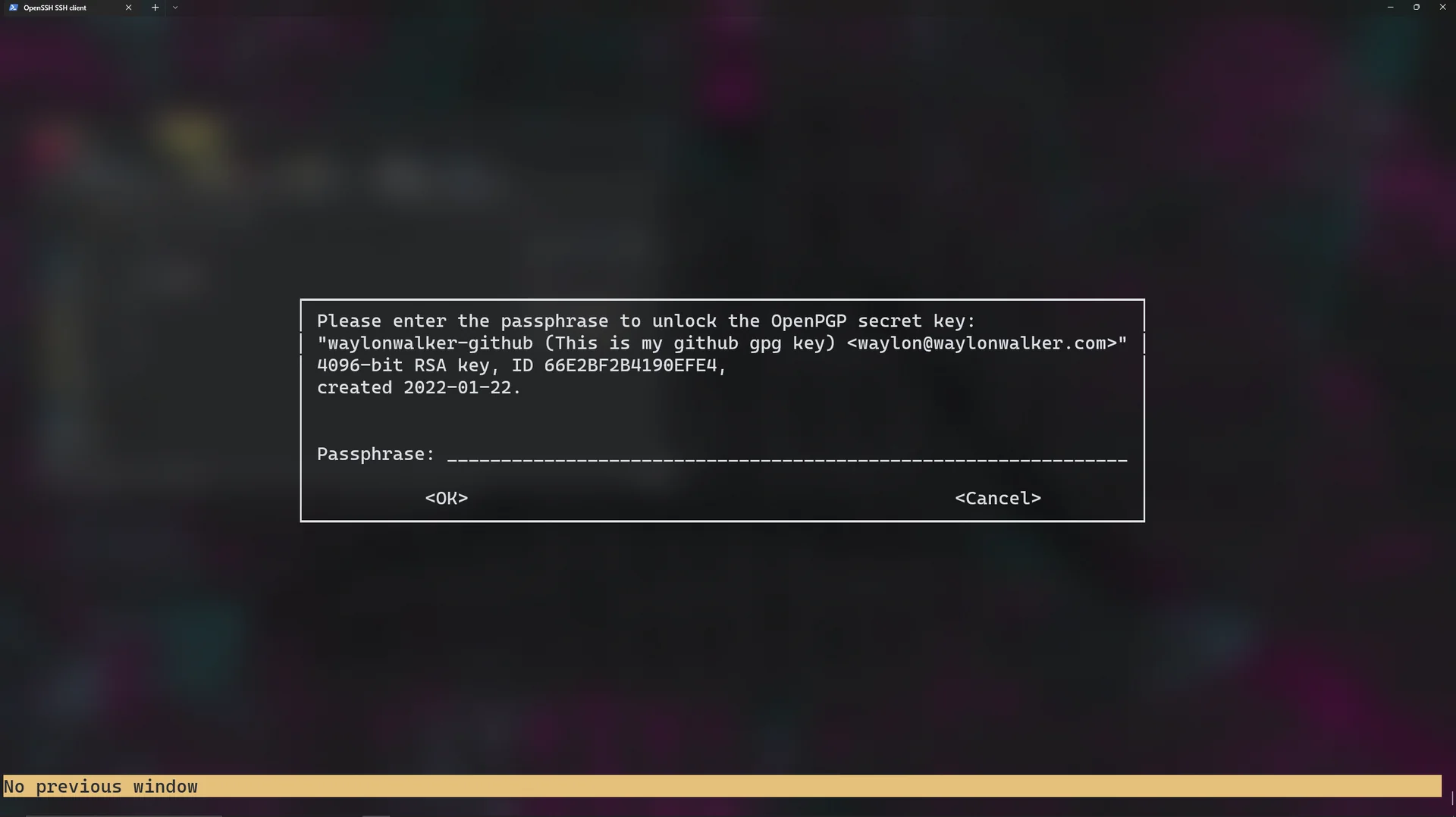
I was editing some blog posts over ssh, when I ran into this error. gpg was failing to sign my commits. I realized that this was because I could not answer to the desktop keyring over ssh, but had no idea how to fix it.

Error #

This is the error message I was seeing.

gpg failed to sign the data ssh

The fix #

The fix ended up being pretty simple, but quite a ways down this stack overflow post. This environment variable tells gpg that we are not logged into a desktop and it does not try to use the desktop keyring, and asks to unlog the gpgkey right in the terminal.

export GPG_TTY=$(tty)

The log in menu #

This is what it looks like when it asks for the passphrase.

enter your passphrase to unlock your gpg key

EDIT-another way #

So this did not fix the issue on Arch BTW, and I have seen it not work for wsl users either. This did work for me and reported to have worked by a wsl user on a github issue.

echo '' | gpg --clearsign

This will unlock the gpg key then let you commit.

Links

- twitter [1] - twitch [2] - github [3] - dev.to [4] - LinkedIn [5] - YouTube [6] References: [1]: https://twitter.com/_WaylonWalker [2]: https://twitch.com/WaylonWalker [3]: https://github.com/WaylonWalker [4]: https://dev.to/waylonwalker [5]: https://www.linkedin.com/in/waylonwalker/ [6]: https://www.youtube.com/waylonwalker
1 min read

Sometimes you get a PR on a project, but cannot review it without wrecking your current working setup. This might be because it needs to be compiled, or a new set of requirements. Git worktrees is a great way to chekout the remote branch in a completely separate directory to avoid changing any files in your current project.

# pattern
# git worktree add -b <branch-name> <PATH> <remote>/<branch-name>
git worktree add -b fix-aws-service-cnsn /tmp/project origin/fix-aws-service-cnsn

This will create a new directory /tmp/project that you can review the branch fix-aws-service-cnsn from the remote origin. If you have setup different remotes locally you can check for the name of it with git remote -v

GitPython is a python api for your git repos, it can be quite handy when you need to work with git from python.

Use Case #

I recently made myself a handy tool for making screenshots in python and it need to do a git commit and push from within the script. For this I reached for GitPython.

How I Quickly Capture Screenshots directly into My Blog

Installation #

GitPython is a python library hosted on pypi that we will want to install into our virtual environments using pip.

pip install GitPython

Create a Repo Object #

Import Repo from the git library and create an instance of the Repo object by giving it a path to the directory containing your .git directory.

from git import Repo
repo = Repo('~/git/waylonwalker.com/')

Two interfaces #

from the docs

It provides abstractions of git objects for easy access of repository data, and additionally allows you to access the git repository more directly using either a pure python implementation, or the faster, but more resource intensive git command implementation.

I only needed to use the more intensive but familar to me git command implementation to get me project off the ground. There is a good tutorial to get you started with their pure python implementation in their docs.

Status #

Requesting the git status can be done as follows.

note I have prefixed my commands with »> to distinguish between the command I entered and the output.

>>> print(repo.git.status())

On branch main
Your branch is ahead of 'origin/main' by 1 commit.
  (use "git push" to publish your local commits)

Untracked files:
  (use "git add <file>..." to include in what will be committed)
        blog/

You can even pass in flags that you would pass into the cli.

>>> print(repo.git.status("-s"))

<!--markata-attribution-->
?? blog/

log #

Example of using the log.

print(repo.git.log('--oneline', '--graph'))

* 0d28bd8 fix broken image link
* 3573928 wip screenshot-to-blog
* fed9abc wip screenshot-to-blog
* d383780 update for wsl2
* ad72b14 wip screenshot-to-blog
* 144c2f3 gratitude-180

Find Deleted Files #

We can even do things like find all files that have been deleted and the hash they were deleted.

print(repo.git.log('--diff-filter', 'D', '--name-only', '--pretty=format:"%h"'))

git find deleted files

full post on finding deleted files

My Experience #

This library seemed pretty straightforward and predicatable once I realized there were two main implementations and that I would already be familar with the more intensive git command implementation.

Python, click install

Edit the System Environment Variables

Environment Variables button

Add the following path to your users Path Variable

C:\Program Files (x86)\Common Files\Oracle\Java\javapath;C:\WINDOWS\system32;C:\WINDOWS;C:\WINDOWS\System32\Wbem;C:\WINDOWS\System32\WindowsPowerShell\v1.0\;C:\WINDOWS\System32\OpenSSH\;C:\Program Files (x86)\NVIDIA Corporation\PhysX\Common;C:\Program Files\NVIDIA Corporation\NVIDIA NvDLISR;C:\Program Files\dotnet\;C:\Users\quadm\AppData\Local\Packages\PythonSoftwareFoundation.Python.3.10_qbz5n2kfra8p0\LocalCache\local-packages\Python310\Scripts;

Sometimes you just want python to do something else when you hit an exception, maybe that’s fire a text, slack message, email, or system notification like I wanted.

I am working on a quick and dirty python script designed to take screenshots and land them on my website in a single hotkey. With it being designed to run with a hotkey, if it were to error I would not see it.

I could have gone down a logging route, but honestly this is meant to be quick, dirty, and work on my system for me. I just want to get it in my system notification.

sys.excepthook #

Python exposes sys.excepthook for just this case. Here is what I ended up doing to fire a system notification as well as printing the message. Yaya a log would be mroe appropriate, but this is designed to just get done quick and do the job I want it to do.

def notify_exception(type, value, tb):
    traceback_details = "\n".join(traceback.extract_tb(tb).format())

    msg = f"caller: {' '.join(sys.argv)}\n{type}: {value}\n{traceback_details}"
    print(msg)
    Popen(
        f'notify-send "screenshot.py hit an exception" "{msg}" -a screenshot.py',
        shell=True,
    )


sys.excepthook = notify_exception
0 / 0

I recently was unable to boot into my home Linux Desktop, it got stuck at diskcheck fsck. I found that I was able to get in to a tty through a hotkey.

https://twitter.com/_WaylonWalker/status/1512281106120384519

What’s a TTY? #

There’s probably more to it, but to me its a full screen terminal with zero gui, not even your gui fonts. It does log into your default shell so if you have a comfy command line setup it will be here for you even though it looks much different without fonts and full colorspace.

Normal setup #

Normally you have 6 TTY’s running, the first is dedicated to your desktop manager, which is your login screen it might be something like gdm or lightdm.

  • ctrl+alt+F1: login screen
  • ctrl+alt+F2: Desktop
  • ctrl+alt+F3: TTY 3
  • ctrl+alt+F4: TTY 4
  • ctrl+alt+F5: TTY 5
  • ctrl+alt+F6: TTY 6

In my case the desktop manager neverstarted, so ctrl+alt+F1 brought me into a tty.

What happened?? #

Well after getting back in and having some time to reflect, I think my Desktop manager was installed or just broken, possibly during a update I ran a few days prior.

I tried a bunch of things like switching to lightdm, and manually running startx.

Getting back in #

The final commands that ended up getting me back in were installing and starting gdm3.

sudo apt install gdm3
sudo systemctl start gdm3

pygame events are stored in a queue, by default the most suggested way shown in all tutorials “pumps” the queue, which removes all the messages.

start up pygame #

You don’t necessarily need a full boilerplate to start looking at events, you just just need to pygame.init() and to capture any keystrokes you need a window to capture them on, so you will need a display running.

import pygame
pygame.init()
pygame.display.set_mode((854, 480))

get some events #

Let’s use pygames normal event.get method to get events.

events = pygame.event.get()

printing the events reveal this

[
    <Event(1541-JoyDeviceAdded {'device_index': 0, 'guid': '030000005e0400008e02000010010000'})>,
    <Event(4352-AudioDeviceAdded {'which': 0, 'iscapture': 0})>,
    <Event(4352-AudioDeviceAdded {'which': 1, 'iscapture': 0})>,
    <Event(4352-AudioDeviceAdded {'which': 2, 'iscapture': 0})>,
    <Event(4352-AudioDeviceAdded {'which': 0, 'iscapture': 1})>,
    <Event(4352-AudioDeviceAdded {'which': 1, 'iscapture': 1})>,
    <Event(32774-WindowShown {'window': None})>,
    <Event(32777-WindowMoved {'x': 535, 'y': 302, 'window': None})>,
    <Event(32770-VideoExpose {})>,
    <Event(32776-WindowExposed {'window': None})>,
    <Event(32788-WindowTakeFocus {'window': None})>,
    <Event(32768-ActiveEvent {'gain': 1, 'state': 1})>,
    <Event(32785-WindowFocusGained {'window': None})>,
    <Event(768-KeyDown {'unicode': 'a', 'key': 97, 'mod': 0, 'scancode': 4, 'window': None})>,
    <Event(771-TextInput {'text': 'a', 'window': None})>,
    <Event(768-KeyDown {'unicode': 's', 'key': 115, 'mod': 0, 'scancode': 22, 'window': None})>,
    <Event(771-TextInput {'text': 's', 'window': None})>,
    <Event(769-KeyUp {'unicode': 'a', 'key': 97, 'mod': 0, 'scancode': 4, 'window': None})>,
    <Event(768-KeyDown {'unicode': 'd', 'key': 100, 'mod': 0, 'scancode': 7, 'window': None})>,
    <Event(771-TextInput {'text': 'd', 'window': None})>,
    <Event(769-KeyUp {'unicode': 's', 'key': 115, 'mod': 0, 'scancode': 22, 'window': None})>,
    <Event(769-KeyUp {'unicode': 'd', 'key': 100, 'mod': 0, 'scancode': 7, 'window': None})>,
    <Event(768-KeyDown {'unicode': 'f', 'key': 102, 'mod': 0, 'scancode': 9, 'window': None})>,
    <Event(771-TextInput {'text': 'f', 'window': None})>,
    <Event(769-KeyUp {'unicode': 'f', 'key': 102, 'mod': 0, 'scancode': 9, 'window': None})>,
    <Event(768-KeyDown {'unicode': 's', 'key': 115, 'mod': 0, 'scancode': 22, 'window': None})>,
    <Event(771-TextInput {'text': 's', 'window': None})>,
    <Event(768-KeyDown {'unicode': 'd', 'key': 100, 'mod': 0, 'scancode': 7, 'window': None})>,
    <Event(771-TextInput {'text': 'd', 'window': None})>,
    <Event(769-KeyUp {'unicode': 's', 'key': 115, 'mod': 0, 'scancode': 22, 'window': None})>,
    <Event(769-KeyUp {'unicode': 'd', 'key': 100, 'mod': 0, 'scancode': 7, 'window': None})>,
    <Event(768-KeyDown {'unicode': 'f', 'key': 102, 'mod': 0, 'scancode': 9, 'window': None})>,
    <Event(771-TextInput {'text': 'f', 'window': None})>,
    <Event(768-KeyDown {'unicode': 'a', 'key': 97, 'mod': 0, 'scancode': 4, 'window': None})>,
    <Event(771-TextInput {'text': 'a', 'window': None})>,
    <Event(769-KeyUp {'unicode': 'f', 'key': 102, 'mod': 0, 'scancode': 9, 'window': None})>,
    <Event(768-KeyDown {'unicode': 's', 'key': 115, 'mod': 0, 'scancode': 22, 'window': None})>,
    <Event(771-TextInput {'text': 's', 'window': None})>,
    <Event(769-KeyUp {'unicode': 'a', 'key': 97, 'mod': 0, 'scancode': 4, 'window': None})>,
    <Event(768-KeyDown {'unicode': 'd', 'key': 100, 'mod': 0, 'scancode': 7, 'window': None})>,
    <Event(771-TextInput {'text': 'd', 'window': None})>,
    <Event(769-KeyUp {'unicode': 's', 'key': 115, 'mod': 0, 'scancode': 22, 'window': None})>,
    <Event(769-KeyUp {'unicode': 'd', 'key': 100, 'mod': 0, 'scancode': 7, 'window': None})>,
    <Event(768-KeyDown {'unicode': 'f', 'key': 102, 'mod': 0, 'scancode': 9, 'window': None})>,
    <Event(771-TextInput {'text': 'f', 'window': None})>,
    <Event(769-KeyUp {'unicode': 'f', 'key': 102, 'mod': 0, 'scancode': 9, 'window': None})>,
    <Event(768-KeyDown {'unicode': 'a', 'key': 97, 'mod': 0, 'scancode': 4, 'window': None})>,
    <Event(771-TextInput {'text': 'a', 'window': None})>,
    <Event(768-KeyDown {'unicode': 's', 'key': 115, 'mod': 0, 'scancode': 22, 'window': None})>,
    <Event(771-TextInput {'text': 's', 'window': None})>,
    <Event(768-KeyDown {'unicode': 'd', 'key': 100, 'mod': 0, 'scancode': 7, 'window': None})>,
    <Event(771-TextInput {'text': 'd', 'window': None})>,
    <Event(769-KeyUp {'unicode': 'a', 'key': 97, 'mod': 0, 'scancode': 4, 'window': None})>,
    <Event(769-KeyUp {'unicode': 's', 'key': 115, 'mod': 0, 'scancode': 22, 'window': None})>,
    <Event(769-KeyUp {'unicode': 'd', 'key': 100, 'mod': 0, 'scancode': 7, 'window': None})>,
    <Event(768-KeyDown {'unicode': 'f', 'key': 102, 'mod': 0, 'scancode': 9, 'window': None})>,
    <Event(771-TextInput {'text': 'f', 'window': None})>,
    <Event(769-KeyUp {'unicode': 'f', 'key': 102, 'mod': 0, 'scancode': 9, 'window': None})>,
    <Event(768-KeyDown {'unicode': 's', 'key': 115, 'mod': 0, 'scancode': 22, 'window': None})>,
    <Event(771-TextInput {'text': 's', 'window': None})>,
    <Event(769-KeyUp {'unicode': 's', 'key': 115, 'mod': 0, 'scancode': 22, 'window': None})>,
    <Event(768-KeyDown {'unicode': 'd', 'key': 100, 'mod': 0, 'scancode': 7, 'window': None})>,
    <Event(771-TextInput {'text': 'd', 'window': None})>,
    <Event(769-KeyUp {'unicode': 'd', 'key': 100, 'mod': 0, 'scancode': 7, 'window': None})>,
    <Event(768-KeyDown {'unicode': 'f', 'key': 102, 'mod': 0, 'scancode': 9, 'window': None})>,
    <Event(771-TextInput {'text': 'f', 'window': None})>,
    <Event(769-KeyUp {'unicode': 'f', 'key': 102, 'mod': 0, 'scancode': 9, 'window': None})>,
    <Event(768-KeyDown {'unicode': 's', 'key': 115, 'mod': 0, 'scancode': 22, 'window': None})>,
    <Event(771-TextInput {'text': 's', 'window': None})>,
    <Event(769-KeyUp {'unicode': 's', 'key': 115, 'mod': 0, 'scancode': 22, 'window': None})>,
    <Event(768-KeyDown {'unicode': 'd', 'key': 100, 'mod': 0, 'scancode': 7, 'window': None})>,
    <Event(771-TextInput {'text': 'd', 'window': None})>,
    <Event(769-KeyUp {'unicode': 'd', 'key': 100, 'mod': 0, 'scancode': 7, 'window': None})>,
    <Event(768-KeyDown {'unicode': '', 'key': 1073742051, 'mod': 1024, 'scancode': 227, 'window': None})>,
    <Event(772-Unknown {})>,
    <Event(769-KeyUp {'unicode': '', 'key': 1073742051, 'mod': 0, 'scancode': 227, 'window': None})>,
    <Event(32768-ActiveEvent {'gain': 0, 'state': 1})>,
    <Event(32786-WindowFocusLost {'window': None})>,
    <Event(772-Unknown {})>
]

Lets get some more events. #

Let’s say that we have multpile sprites all asking for the events from different places in our game. If we assume that our game loop runs very fastand we get events one after another the second one will have no events.

events_one = pygame.event.get()
events_two = pygame.event.get()

printing the events reveals that there are no events, well i

[]

Making things more maddening #

Even simple games don’t quite run infinitely fast there is some delay, with this delay most events will go to event_one, while any that occur in the short time between event_one and two will be in event_two’s queue.

import time
events_one = pygame.event.get()
time.sleep(.05) # simulating some delay that would naturally occur
events_two = pygame.event.get()

How to Resolve this #

Store events for each frame in memory.

Pump #

I thought pump=False would be the answer I was looking for, but I was proven wrong. It does not behave intuitivly to me.

events_one = pygame.event.get(pump=False) # all events since last pump
events_two = pygame.event.get(pump=False) # no events
events_three = pygame.event.get() # all events since last pump

events_one and events_three will have a list of events, while events_two will be empty. It seems that pump=False leaves the events there for the next event.get(), but appears cleared to any event.get(pump=False).

Keep a Game State #

If you want objects to do their own event handling, outside of the main game, you will need to give them some game state with the events in it. However you decide, you may only call event.get() once per game loop otherwise weird things will happen.

One of the most essential concepts of pygame to start making a game you will need to understand is loading images and blitting them to the screen.

blit stands for block image transfer, to me it feels a lot like layering up layers/images in photoshop or Gimp.

Loading an image #

I started by making a spotlight in Gimp, by opening a 64x64 pixel image and painting the center with a very soft brush.

the spotlight I created in gimp

This is what it looks like

Now we can load this into pygame.

import pygame
img = pygame.image.load("assets/spotlight.png")

Converting to the pygame colorspace #

To make pygame a bit more efficient we can convert the image to pygames colorspace once when we load it rather than every time we blit it onto another surface.

import pygame

# convert full opaque images
img = pygame.image.load("assets/spotlight.png").convert()

# convert pngs with transparancy
img = pygame.image.load("assets/spotlight.png").convert_alpha()

blitting #

To display the image onto the screen we need to use the blit method which needs at least two arguments, something to blit and a position to blit it at.

screen = pygame.display.set_mode(self.screen_size)
screen.blit( img, (0, 0),)

note blitting to the position (0, 0) will align the top left corners of the object we are blitting onto (screen) and the object we are blitting (img).

Starter #

Now we need an actual game running to be able to put on the screen. I am using my own starter/boilerplate, if you want to follow along you can install it from github into your own virtual environment.

pip install git+https://github.com/WaylonWalker/pygame-starter

Pygame Boilerplate Apr 2022

You can read more about my starter in this post

Let’s place this image right in the middle #

Now we can use the starter to create a new game, and with just a bit of offset we can put the spotlight directly in the middle.

import pygame
from pygame_starter import Game


class MyGame(Game):
    def __init__(self):
        super().__init__()
        # load in the image one time and store it inside the object instance
        self.img = pygame.image.load("assets/spotlight.png").convert_alpha()
    def game(self):
        # fill the screen with aqua
        self.screen.fill((128, 255, 255))
        # transfer the image to the middle of the screen
        self.screen.blit(
            self.img,
            (
                self.screen_size[0] / 2 - self.img.get_size()[0],
                self.screen_size[1] / 2 - self.img.get_size()[1],
            ),
        )


if __name__ == "__main__":
    game = MyGame()
    game.run()

If we save this as load_and_blit.py we can run it at the command like as so.

python load_and_blit.py

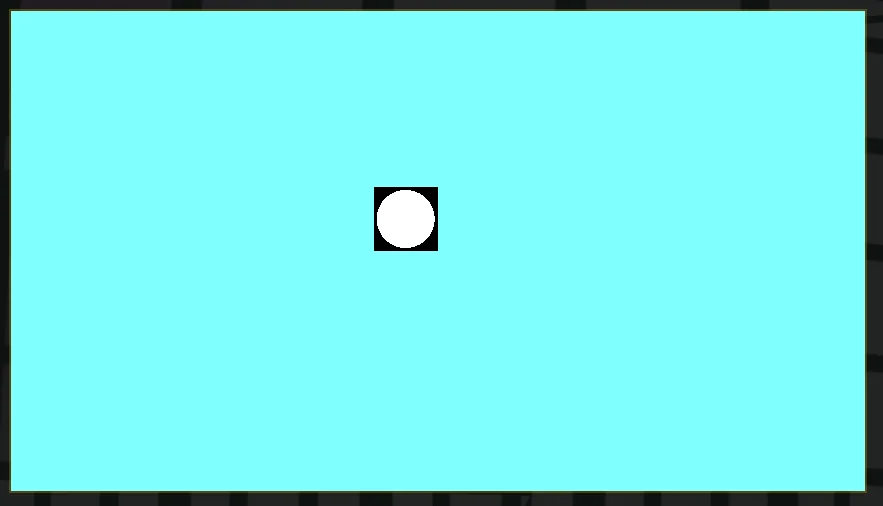
And we should get the following results.

the results of putting the image in the middle

convert a transparent png #

What happens when we accidently use .convert() rather than .convert_alpha()?

using convert on a transparant png gets rid of all transparancy and fills with black

Making snow #

A common concept in pygame, that is built into my starter, is that you typically want to reset the screen each and every frame. Building on this with our new concept of blitting spotlights onto the screen we can make a random noise of snow by blitting a bunch of images to the screen.

import random

import pygame
from pygame_starter import Game


class MyGame(Game):

    def __init__(self):
        super().__init__()
        self.img = pygame.image.load("assets/spotlight.png").convert_alpha()

    def game(self):
        self.screen.fill((128, 255, 255))
        for  in range(100):
            self.screen.blit(
                self.img,
                (
                    random.randint(0, self.screen_size[0]) - self.img.get_size()[0],
                    random.randint(0, self.screen_size[1]) - self.img.get_size()[1],
                ),
            )


if __name__ == "__main__":
    game = MyGame()
    game.run()

the results #

snow falling down the screen

From the same Author that brought us command line essentials like fd and bat written in rust comes pastel an incredible command-line tool to generate, analyze, convert and manipulate colors.

Install #

You can install from one of the releases, follow the instructions for your system from the repo. I chose to go the nix route. I have enjoyed the simplicity of the nix package manager being cross platform and have very up to date packages in it.

nix-env --install pastel

Mixing colors #

Something I often do to blend colors together is add a little alpha to something over top of a background. I can simulate this by mixing colors.

pastel color cornflowerblue | pastel mix goldenrod -f .1

Here is one from the docs that show how you can generate a color palette from random colors, mix in some red, lighten and format all in one pipe.

pastel random | pastel mix red | pastel lighten 0.2 | pastel format hex

color picker #

I am on Ubuntu 20.10 as I write this and it works flawlessly. When I call the command, a color picker gui pops up along with an rgb panel. I can pick from the panel or from anywhere on my screen.

pastel color-picker

pastel pick

Conversions #

I often will want to convert a color from rgb to hex or hsl vice versa. I open google and search. This is one part that I could really use adding to my workflow.

Check it #

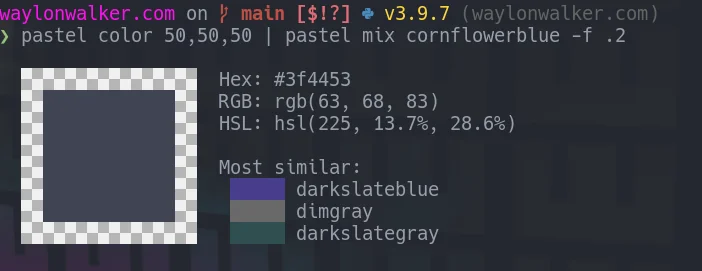
Here I can mix up a dark grey with rgb, mix in 20% cornflowerblue, and grab the hex value.

pastel color 50,50,50 | pastel mix cornflowerblue -f .2
my terminal output from mixing grey

I really want to get this into my workflow. I saw it quite awhile ago but have not done much color work. Lately I have been doing a bit more front end, and have been getting into game development. This is the time to stop googling random color mixers and use this one.

Dunk is a beautiful git diff tool built on top of rich.

Browsing through twitter the other day I discovered it through this tweet by _darrenburns.

https://twitter.com/_darrenburns/status/1510350016623394817

Dunk is beta #

Before I dive in deep, I do want to mention that Dunk is super new and beta at this point. I am making it my default pager, because I know what I am doing and can quickly shift back if I need to, no sweat. If you are a little less comfortable with the command line, terminal, or reading any issues that might come up, it might be best if you just pipe into Dunk when you want to use it.

The author really cautions the use of it as your default pager this early, I’m just showing that it’s possible, and I’m trying it.

He notes that it might have some issues especially with partially staged files.

try it #

You can try it with pipx.

git diff | pipx run dunk

install it #

If you like it, you can install it with pip or pipx, I prefer pipx for cli applications like this.

pipx install dunk

set it as your default pager #

You can configure dunk as your default pager with the command line, or by editing your .gitconfig file.

git config --global pager.diff "dunk | less -R`
[pager]
    diff = dunk | less -R

As pointed out by _darrenburns dunk is not a pager and you can gain back all of the benefits of using a pager by piping into less with the -R flag.

reset it if you don’t like it #

You can --unset your pager configuration from the command line or edit your .gitconfig file by hand to remove the lines shown above.

git config --global --unset pager.diff

Comparison #

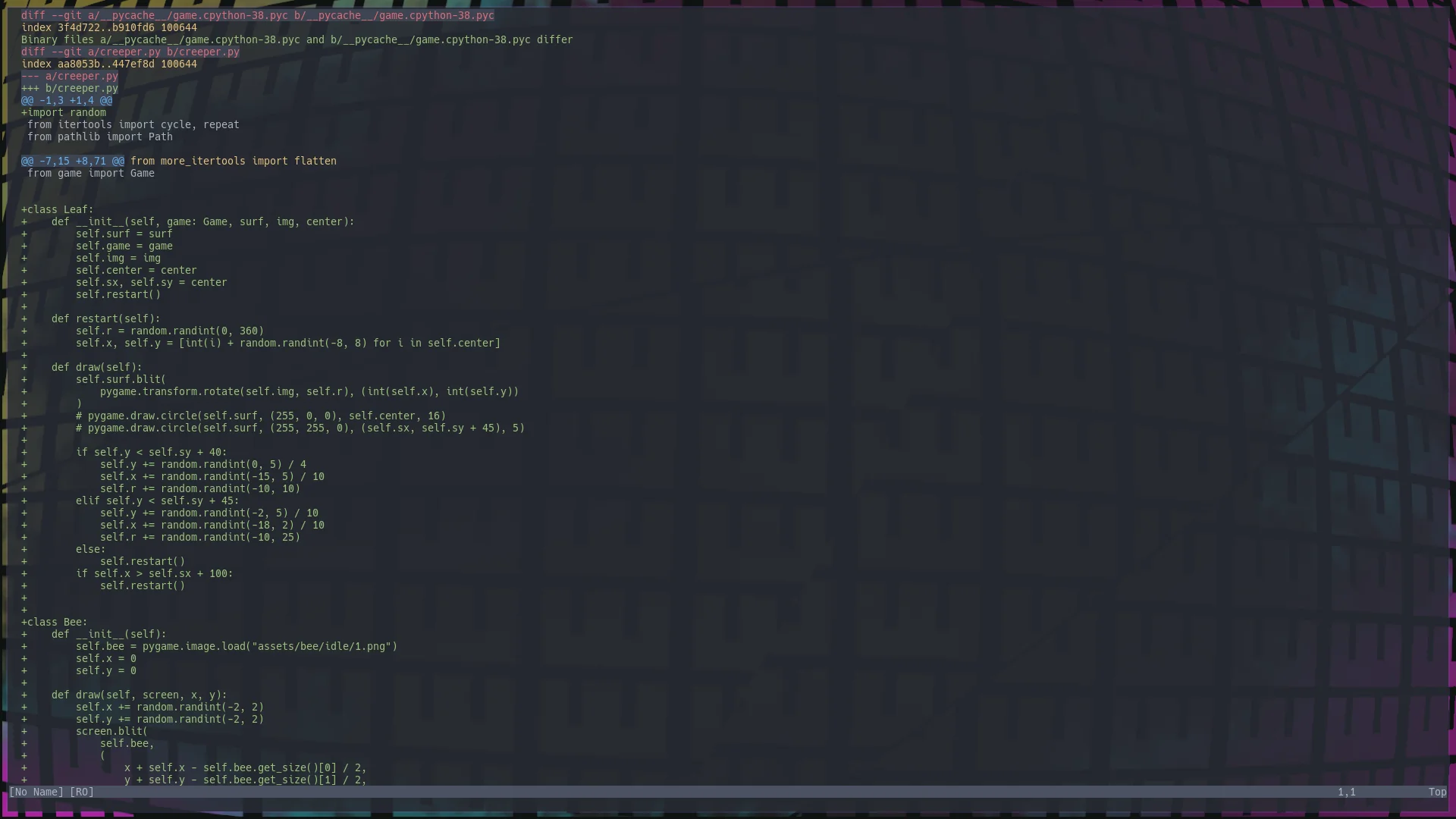
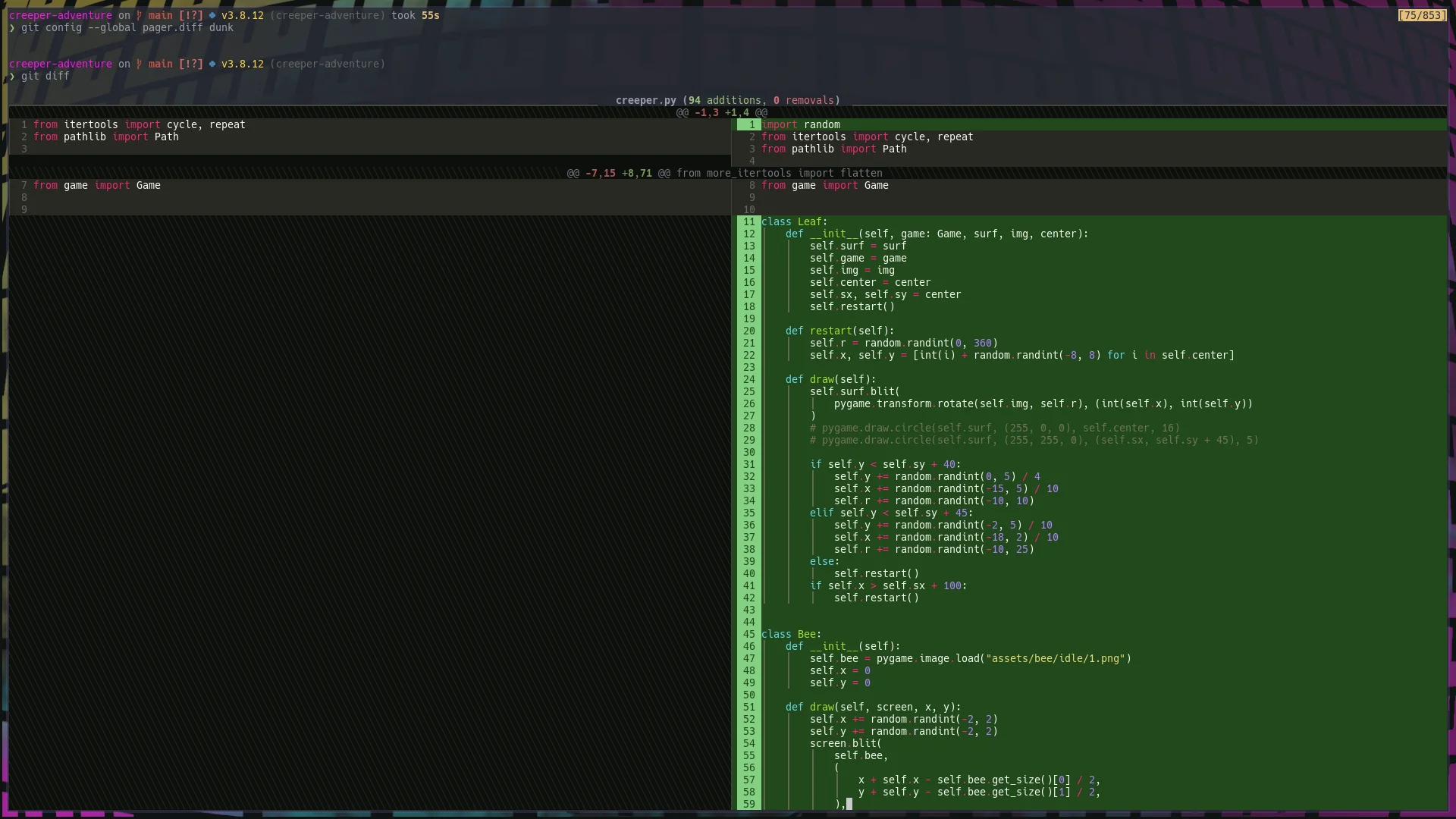
I have some edits to a game my son and I are working on unstaged so I ran git diff on that project with and without dunk to compare the differences.

default diff

Dunk just looks so good.

dunk diff

Always install #

If you follow along here often you know that I am a big fan of installing all my tools in an ansible playbook so that I don’t suffer configuring a new machine for months after getting it and wondering why its not exactly like the last.

# Dunk - prettier git diffs
# https://github.com/darrenburns/dunk
- name: check is dunk installed
  shell: command -v black
  register: dunk_exists
  ignore_errors: yes

- name: install dunk
  when: dunk_exists is failed
  shell: pipx install dunk

[[ ansible-install-if-not-callable ]]

More on conditionally installing tools with ansible in this post.

I’m poking a bit into gamedev. Partly to better understand, partly because it’s stretching different parts of my brain/skillset than writing data pipelines does, but mostly for the experience of designing them with my 9yo Wyatt.

pygame boilerplates #

I’ve seen several pygame boilerplate templates, but they all seem to rely heavily on globl variables. That’s just not how I generally develop anything. I want a package that I can pip install, run, import, test, all the good stuff.

My current starter #

What currently have is a single module starter package that is on github so that I can install it and start building games with very little code.

Installation #

Since it’s a package on GitHub you can install it with the git+ prefix.

pip install git+https://github.com/WaylonWalker/pygame-starter

Example Game #

You can make a quick game by inheriting from Game, and calling .run(). This example just fills the screen with an aqua color, but you can put all of your game logic in the game method.

from pygame_starer import Game

class MyGame(Game):
    def game(self):
        self.screen.fill((128, 255, 255))

if __name__ == "__main__":
    game = MyGame()
    game.run()

The starter #

Here is what the current game.py looks like. I will probably update it as time goes on and I learn more about the things I want to do with it.

from typing import Tuple

import pygame


class Game:
    def __init__(
        self,
        screen_size: Tuple[int, int] = (854, 480),
        caption: str = "pygame-starter",
        tick_speed: int = 60,
    ):
        """

        screen_size (Tuple[int, int]): The size of the screen you want to use, defaults to 480p.
        caption (str): the name of the game that will appear in the title of the window, defaults to `pygame-starter`.
        tick_speed (int): the ideal clock speed of the game, defaults to 60

        ## Example Game

        You can make a quick game by inheriting from Game, and calling
        `.run()`.  This example just fills the screen with an aqua color, but
        you can put all of your game logic in the `game` method.

        ``` python
        from pygame_starer import Game

        class MyGame(Game):
            def game(self):
                self.screen.fill((128, 255, 255))

        if __name__ == "__main__":
            game = MyGame()
            game.run()

        ```
        """
        pygame.init()
        pygame.display.set_caption(caption)

        self.screen_size = screen_size
        self.screen = pygame.display.set_mode(self.screen_size)
        self.clock = pygame.time.Clock()
        self.tick_speed = tick_speed

        self.running = True
        self.surfs = []

    def should_quit(self):
        """check for pygame.QUIT event and exit"""
        for event in pygame.event.get():
            if event.type == pygame.QUIT:
                self.running = False

    def game(self):
        """
        This is where you put your game logic.

        """
        ...

    def reset_screen(self):
        """
        fill the screen with black
        """
        self.screen.fill((0, 0, 0))

    def update(self):
        """
        run one update cycle
        """
        self.should_quit()
        self.reset_screen()
        self.game()
        for surf in self.surfs:
            self.screen.blit(surf, (0, 0))
        pygame.display.update()
        self.clock.tick(self.tick_speed)

    def run(self):
        """
        run update at the specified tick_speed, until exit.
        """
        while self.running:
            self.update()
        pygame.quit()


if __name__ == "__main__":
    game = Game()
    game.run()